This is a very simple demo that meets the most basic QA requirement.
1.Search phones under CUCM admin GUI, copy and paste the results into a spreadsheet.
2. Remove any unnecessary columns, leave only name and status column,
3. Combine the two column by typing formula =(a1&" "&b1) into the first cell of new column and copy this cell into all the following cells until the last record, so to make a "before column"
https://support.office.com/en-US/article/Combine-text-from-two-or-more-cells-into-one-cell-94700285-8458-469B-AAE9-394451A1045C
4. After the change, repeat the above steps, make an "after" column.
5. Do the comparison with conditional formating:
5.1 highlight the before column, then click conditional formatting, new rule,

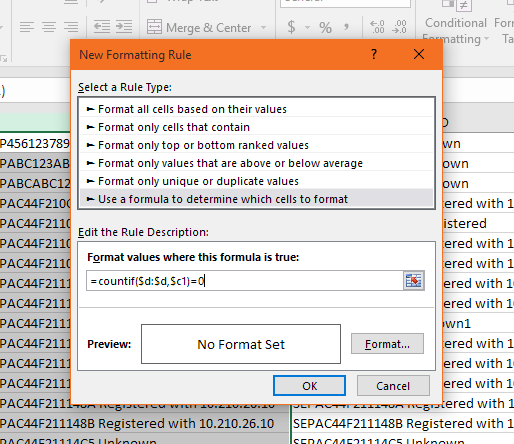
5.2 select "use a formula....", enter the formula like this ,then click the Format button,
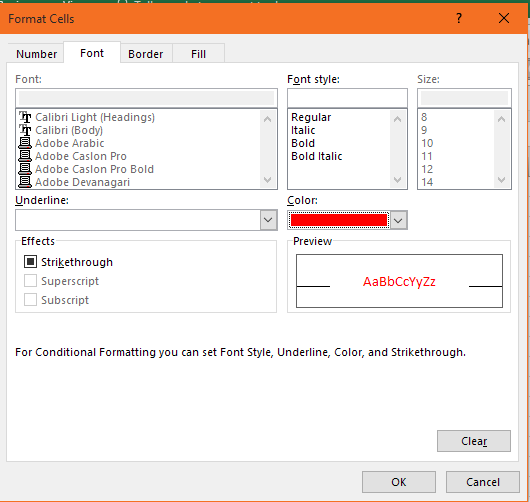
5.3 choose a color to format the text in before column when a mismatch is found in the after column.
6.Now any entry in the before column that's different from the after column will be highlighted with this color.

More excel comparison functions can be found here,
https://www.ablebits.com/office-addins-blog/2015/08/26/excel-compare-two-columns-matches-differences/#compare-two-columns-formula-free
2. Remove any unnecessary columns, leave only name and status column,
3. Combine the two column by typing formula =(a1&" "&b1) into the first cell of new column and copy this cell into all the following cells until the last record, so to make a "before column"
https://support.office.com/en-US/article/Combine-text-from-two-or-more-cells-into-one-cell-94700285-8458-469B-AAE9-394451A1045C
4. After the change, repeat the above steps, make an "after" column.
5. Do the comparison with conditional formating:
5.1 highlight the before column, then click conditional formatting, new rule,
5.2 select "use a formula....", enter the formula like this ,then click the Format button,
5.3 choose a color to format the text in before column when a mismatch is found in the after column.
6.Now any entry in the before column that's different from the after column will be highlighted with this color.
More excel comparison functions can be found here,
https://www.ablebits.com/office-addins-blog/2015/08/26/excel-compare-two-columns-matches-differences/#compare-two-columns-formula-free

No comments:
Post a Comment